
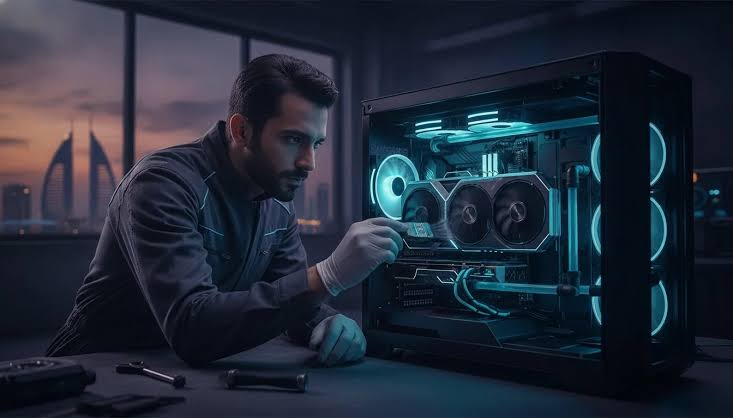
Computers have become essential tools for daily life, supporting everything from remote work and education to gaming and creative projects. A well-maintained PC or laptop runs faster, operates more quietly, and enjoys a longer hardware lifespan, helping users avoid costly repairs and unexpected downtime. Many common issues like system slowdowns, high temperatures, and storage bottlenecks stem from neglecting basic maintenance.
This guide breaks down essential hardware principles, performance optimization strategies, thermal management, software safety, and hardware upgrade paths to keep your computer running reliably.
Why Routine Computer Maintenance Matters
Regular maintenance ensures that both desktop PCs and laptops maintain optimal processing speeds and secure environments over years of service. Proactive care prevents small technical bugs from developing into major hardware failures.
- Maintains Operational Speed: Prevents background clutter from consuming processor cycles and memory capacity.
- Extends Hardware Longevity: Keeping internal components cool slows down the natural degradation of silicon and electronic circuits.
- Protects Sensitive Data: Prompt operating system updates patch security vulnerabilities before cyber threats can exploit them.
- Optimizes Battery Efficiency: Proper charge cycles prolong the chemical health of laptop batteries.
Maintenance Rule: Taking fifteen minutes each month to clean temporary files, check system updates, and clear dust vents can double the functional lifespan of a personal computer.
Core Hardware Components Explained
Understanding how key hardware components interact helps users pinpoint performance bottlenecks and make informed decision when upgrading their systems.
+-----------------------------------------------------------------------+
|                         CENTRAL PROCESSING UNIT                       |
|                       (Executes Instructions & Logic)                 |
+-----------------------------------------------------------------------+
                                   |
                                   v
+-----------------------------------------------------------------------+
|                        SYSTEM MEMORY (RAM)                            |
|                 (Stores Active Apps for Fast Access)                  |
+-----------------------------------------------------------------------+
                /                                       \
               v                                         v
+-----------------------------+           +-----------------------------+
|       STORAGE DRIVE         |           |  GRAPHICS PROCESSING UNIT   |
|   (SSD / Hard Drive - Data) |           |  (Renders Display & Visuals)|
+-----------------------------+           +-----------------------------+
| Component | Primary Function | Maintenance Concern |
| Central Processing Unit (CPU) | Handles system instructions and computations. | Thermal throttling caused by dust buildup or dried thermal paste. |
| System Memory (RAM) | Holds active data for quick retrieval. | Running out of available capacity leads to system slowdowns. |
| Solid-State Drive (SSD) | Provides high-speed, non-volatile storage. | Performance drops significantly when filled beyond $80\%$ to $90\%$ capacity. |
| Graphics Unit (GPU) | Renders visual displays, games, and video edits. | Requires clean cooling fans and up-to-date graphics drivers. |
| System Battery | Powers portable laptops on the go. | Chemical wear accelerates under exposure to high heat or total discharges. |
Essential Steps for Setting Up a New Computer
When setting up a new PC or laptop, completing a few initial configuration steps helps ensure maximum security and performance right out of the box.
- Install Operating System Updates: Run system update tools immediately to download the latest security patches and stable hardware drivers.
- Remove Pre-installed Bloatware: Uninstall unnecessary trial software, pre-installed games, and utility suites that consume background memory.
- Configure System Backups: Set up automatic local or cloud backup routines to protect personal files from the start.
- Establish Security Guardrails: Set up strong passkeys, enable multi-factor authentication (MFA), and verify that built-in firewall protections are active.
Practical Strategies to Improve Computer Performance
1. Control Startup Applications
Many software packages configure themselves to launch automatically when your computer turns on, consuming memory and slowing down boot times. Disabling non-essential startup programs through your system’s task manager ensures processing power remains available for primary workloads.
2. Manage Storage Drive Capacity
Solid-state drives require free space to perform background maintenance routines like wear leveling and garbage collection. Maintaining at least $15\%$ to $20\%$ free storage space prevents noticeable drive slowdowns. Use built-in disk cleanup tools to remove temporary cache files, old download installers, and system error logs.
3. Transition from HDDs to High-Speed SSDs
If an older desktop or laptop relies on a mechanical hard drive (HDD) as its primary boot drive, upgrading to a Solid-State Drive (SSD) provides the single most impactful performance boost available. Solid-state drives deliver significantly faster boot times, instant application launches, and rapid file transfer rates.
Preventing Overheating and Maintaining Airflow
Excessive heat is the primary cause of hardware throttling and component degradation in desktop PCs and laptops. When internal temperatures rise too high, CPUs and GPUs automatically lower their operating speeds to prevent physical damage.
  [ Fresh Air In ]  ------->  [ Cooling Fans / Heatsink ]  ------->  [ Exhaust Hot Air ]
                                       |
                                       v
                        ( Blocked Vents = High Heat )
                                       |
                                       v
                        [ System Throttles Performance ]
Effective Thermal Management Practices
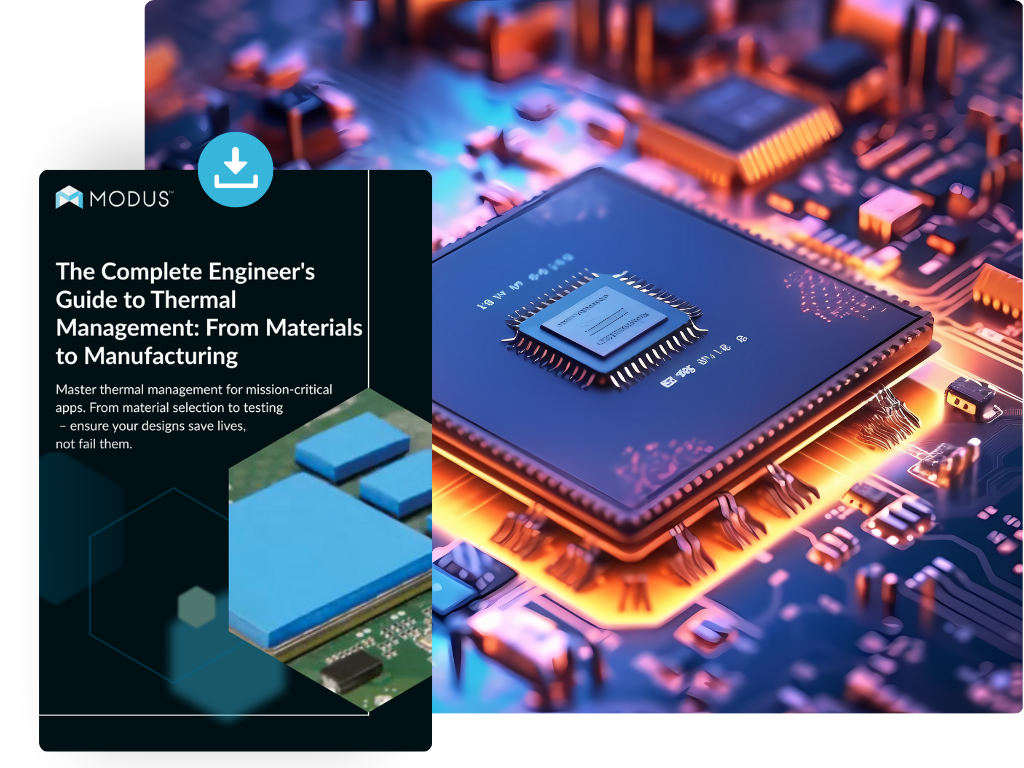
- Clear Vents and Dust Filters: Use compressed air to blow accumulated dust out of intake vents, cooling fins, and fan blades every few months.
- Ensure Hard Surface Usage: Avoid placing laptops on soft bedding, blankets, or cushions that block bottom intake grilles and trap ambient heat.
- Replace Thermal Paste: For older systems, replacing dried thermal paste between the processor and its heatsink restores efficient heat transfer.
Laptop Battery Health and Charging Best Practices
Modern lithium-ion batteries degrade over time based on charge cycles and temperature exposure. Adopting smart charging habits helps maintain total battery capacity over years of mobile use.
- Avoid Deep Discharges: Try to keep your laptop battery level between $20\%$ and $80\%$ whenever possible, avoiding frequent drops to $0\%$.
- Limit Exposure to Heat: Avoid charging laptops under direct sunlight or inside hot vehicles, as heat accelerates battery wear.
- Use Battery Saver Profiles: Enable built-in energy-saving modes when working on battery power to reduce background power consumption and lower operating temperatures.
Cybersecurity and System Protection
Maintaining software security is just as important as caring for physical hardware. Unprotected systems are vulnerable to malware, ransomware, and credential theft.
Security Alert: Always verify download sources before installing executable files. Avoid clicking unverified links in unexpected emails or pop-up messages.
- Enable Real-Time Threat Protection: Keep built-in security features active or install reputable antivirus software to monitor file downloads in real time.
- Keep Software Updated: Outdated web browsers, media players, and system utilities often contain known vulnerabilities that malicious scripts can target.
- Use Strong, Unique Passwords: Protect system accounts using a dedicated password manager and enable multi-factor authentication across all online services.
Data Backup Protocols: The 3-2-1 Rule
Hardware failures, accidental file deletions, and malware attacks can cause permanent data loss. Following a structured backup plan protects your important documents, projects, and media files.
                   +---------------------------------------+
                   |          ORIGINAL DATA FILE           |
                   +---------------------------------------+
                                  /         \
                                 /           \
                                v             v
      +-------------------------------+     +-------------------------------+
      |  Local Copy 1 (External SSD)  |     |  Local Copy 2 (Network Drive) |
      +-------------------------------+     +-------------------------------+
                                                      |
                                                      v
                                            +-------------------+
                                            |  Cloud Copy (Off) |
                                            +-------------------+
The 3-2-1 Backup Strategy requires keeping:
- Three total copies of critical data (the primary original plus two backups).
- Two different storage media types (such as an internal SSD and an external drive).
- One copy off-site, stored securely in encrypted cloud storage.
Troubleshooting Common System Issues
System Running Unusually Slow
- First Action: Restart your computer to clear cached RAM and stop hung background tasks.
- Next Steps: Open your system monitor to identify resource-heavy applications, run a full malware scan, and check available disk space.
Computer Fails to Power On
- First Action: Verify that all power cables, wall outlets, and power supply switches are fully connected and functional.
- Next Steps: Disconnect all non-essential external USB devices to ensure a faulty peripheral isn’t preventing the system from booting up.
Unstable or Dropped Wi-Fi Connections
- First Action: Restart your network router and toggle your computer’s Wi-Fi adapter off and on.
- Next Steps: Update your network adapter drivers through your operating system’s device manager or the manufacturer’s support portal.
Hardware Upgrade Path Guidelines
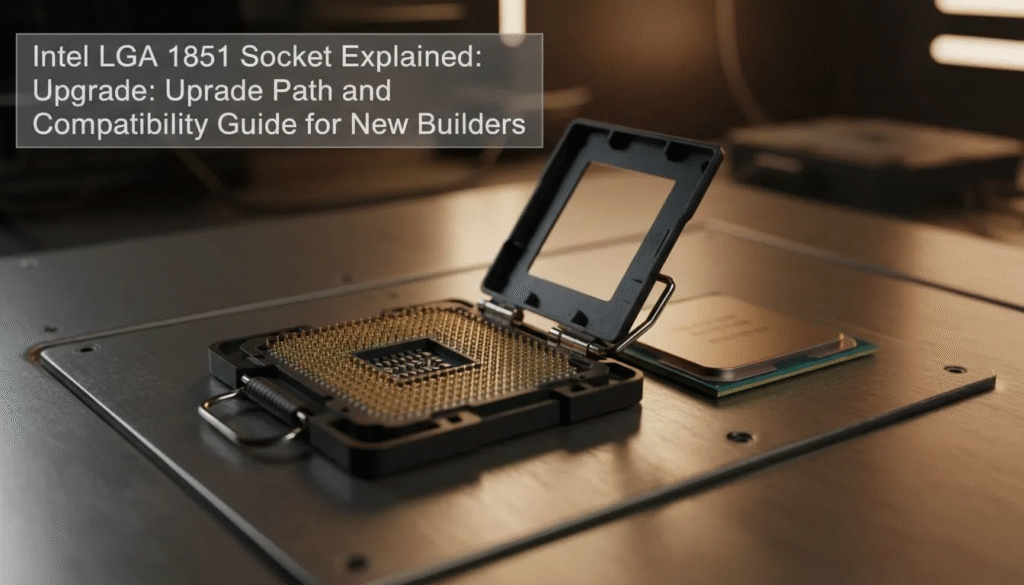
When a computer struggles with modern applications, targeted hardware upgrades can restore performance without the expense of buying a completely new machine.
- RAM Expansion: Adding system memory is an effective upgrade for users who run dozens of browser tabs, edit high-resolution photos, or run complex virtual environments.
- Storage Capacity Upgrades: Replacing smaller primary drives with larger M.2 NVMe SSDs provides more room for demanding applications, large games, and media libraries.
- Graphics Card Upgrades: Desktop users can replace aging GPUs with modern graphics cards to handle high-resolution gaming, 3D rendering, and local AI workloads.
Physical Cleaning Checklist
Physical dust buildup restricts airflow, causes fan noise, and creates thermal bottlenecks inside desktop cases and laptop chassis.
- Screen Care: Wipe display panels using a clean, dry microfiber cloth designed for coated glass and matte screens.
- Keyboard Cleaning: Turn laptops or keyboards upside down and use compressed air to dislodge crumbs, dust, and debris caught under keycaps.
- Port Care: Gently clear dust buildup from USB ports, HDMI outputs, and charging jacks using a soft, non-metallic tool or short bursts of compressed air.
Future Trends in Personal Computing
As personal computer technology evolves, hardware and software architectures are adapting to meet new efficiency demands and intelligent workloads.
- AI Acceleration Hardware: Modern processors feature dedicated Neural Processing Units (NPUs) designed to run local artificial intelligence tasks efficiently without overloading the main CPU or GPU.
- High-Speed Connectivity Standards: The adoption of Wi-Fi 7 and faster PCI Express interface standards enables higher wireless throughput and ultra-fast data transfer speeds across internal storage drives.
- Improved Energy Efficiency: Advances in processor design deliver higher computing performance while consuming less power, leading to quieter cooling systems and longer battery life in laptops.